Moving To a New Site

I have just decided that it's time to move on and have my own domain. All the posts in this blog will be moved to:

www.pinoygeek.org

Personal posts will be transferred to: raldz.pinoygeek.org

Friday, June 09, 2006

Basic Things to Know When Switching to a Linux Desktop

By: Gerald Cortez


Recent releases of Linux Distributions totally amazes me. What was once an OS that is easy to use and configure, has gotten even better. For me, one of the easiest distribution that I had my hands on is MEPIS (3.4-3, with upcoming 6.0 release on mid June 2006). Of course there are other Linux distributions that are great in their own sense. Ubuntu, Kubuntu, SUSE, and Kanotix are among my favorites. As of now, I use MEPIS, Ubuntu, and SUSE on three different machines, and just couldn't make up my mind which distribution should I make my home.

I am an advocate of Open Source, and try to promote Linux to friends, colleagues, and sometimes to total strangers. But even though Linux has made its way to the mainstream and wouldn't make an intermediate computer user sweat, there are always bumps on the road. New users get stuck on their new Linux machines trying to figure out what went wrong, or as a better way to say it.. what they didn't know. From different questions that I get from new users, I have come up to a collection of the basic things that a new Linux user must know.


Distributions

Open Source is all about freedom, and when it comes to Linux Distributions, you have more than a hundred choices. This diversity in distros is due to the unlimited customizations one could do with his own Linux and Open Source applications. To play safe, as a new Linux user, you may want to limit your choice to the top 5 or even top 10 distributions listed at distowatch.com. To help you make your choice, I suggest to try first the single CD distributions before trying those 3 to 5 CD distributions. Single CD distros includes Ubuntu, Kubuntu, MEPIS, Kanotix, and PCLinuxOS.


Live CD

A Live CD is a fully operational Linux OS and Applications packed in one CD ready to use. You just have to boot to the CD and follow some instructions and you'll be up and running a Linux machine in less than 2 minutes. The Live CD runs all the applications from the CD so it doesn't touch or harm your hard drive. You have nothing to be afraid of even though you are new to Linux because no data will be lost from your computer. You may have to configure your BIOS so that the first boot device is your CD ROM. Most Live CD will require you to at least have a minimum of 128MB of RAM. Take note that running applications from a Live CD is a little slow compared to full install of a Linux distro. A popular Live CD is Knoppix, the Ubuntu and Kubuntu 6.06 version is a LiveCD and install CD in one, so is MEPIS, Kanotix, and PCLinuxOS.


Install CD

Almost all Linux install CD or live CD may be downloaded from their respective FTP sites or websites. These CD images are in ISO format and you need to burn them as ISO images. Some install CDs are also a Live CD all in one. Some popular install CDs are SUSE (5-CD plus 1 non-OSS CD), Mandriva (3-CDs), and Fedora (5-CDs). If you don't have a fast internet connection to download these large ISOs, you may opt for the single CD/LiveCD as mentioned earlier. The distributions mentioned in this article are known for their ease of use and installation and have tried it my self. Many new Linux users are quite skeptical when the command line interface is mentioned, but these distributions that I mentioned made me install and customize all my favorite stuffs without touching the command line.


Partitions

If you were born with MS Windows, you know that hard drive partitions are designated as “C” the first partition, “D” as the second, and so forth. If you have a second hard drive, the letters will just continue as “E”, “F”, and so on. But Linux has a more logical way in designating partitions. If you have a primary hard drive, it will be designated as “hda”, a second hard drive will be “hdb”, third will be “hdc” and so on. If you have two partitions in your primary drive, it will be “hda1” and “hda2”. If you have another two partitions in your secondary drive, it will be “hdb1” and “hdb2”. Another “special” partition in Linux is called the “swap” partition. This is equivalent to the “page file” of MS Windows.


Using Gparted to show how my Hard Drive is partitioned to accommodate both MS Windows and Linux.


Mount Points

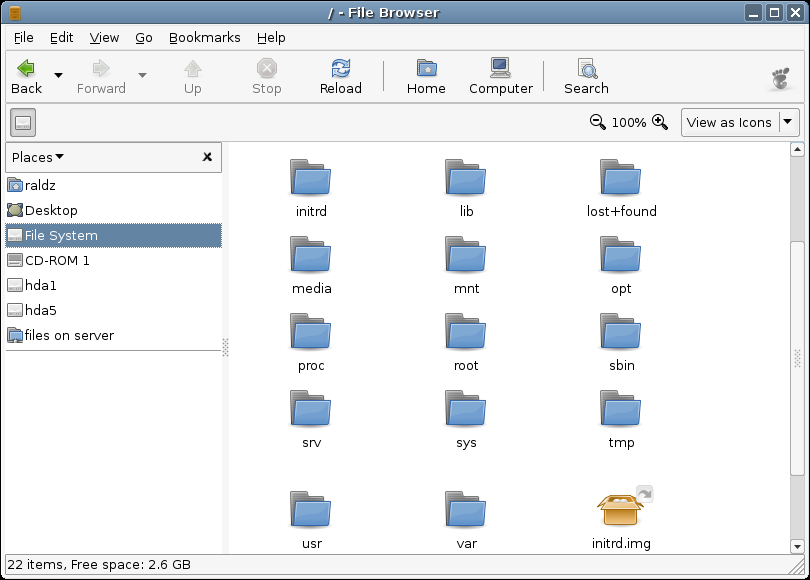
In Linux, hard drive partitions are “mounted” so that it will be accessible inside Linux. Let us take for example the picture above, I have hda1 (FAT32), hda5 (FAT32), and hda6 (EXT3, some distros may have REISERFS as their format). My primary Linux partition is “hda6” this partition is mounted as the root partition or “/” when inside the Linux system. To have hda1 and hda5 accessible inside Linux, they are mounted as “/mnt/hda1” and “/mnt/hda5” respectively. But this shouldn't be a big trouble, as these drives can be seen under “Places” or “My Computer” inside a Linux desktop environment. If you wish to go full time Linux and have another partition formated as “EXT3” or “REISERFS” you may wish to mount those drives or partitions differently, like “/home/archives” or “/home/mp3s” or any other way you want. You may notice that I use “/home” as the base, this is because the /home partition is where all your documents and personal settings are located, it is equivalent to Window's “Document and Settings”. If you want to frequently upgrade your distro, you may want to put your “/home” on a separate partition, this is to preserve all your personal files when you need to reformat the root “/” partition when doing a new install of a distribution. From my previous example, if I have my root at hda6, I may want to separate my /home and create another partition, let us say hda8 and mount it as my /home.


Desktop Environments

There are two popular desktop environments in Linux, these are KDE and GNOME, although there are other desktop managers like XCFE and FLUXBOX, I recommend KDE or GNOME for a new Linux user. These desktop managers are what we call the graphical interface where you may access all your applications, tools, and configurations, so that you may not have to touch the command line when doing a task. I like the Linux desktop managers compared to MS Window's Explorer as it is more organized, fast, stable, and aesthetically pleasing. And yes, you may personalize your desktop to a great extent that it would be very uniquely yours.
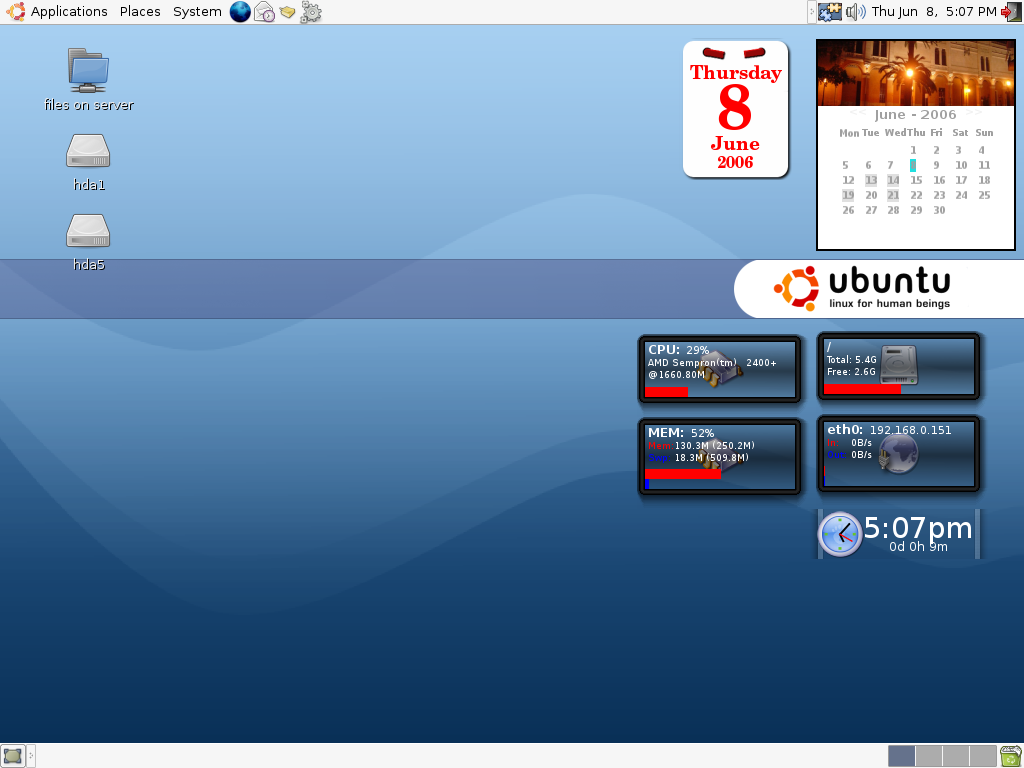


My GNOME Desktop in Ubuntu 6.06


My KDE desktop in SUSE 10.1


Networking

Most new Linux users may find themselves buried in a network of Windows computers, this will not be a problem at all. There are two basic packages that you need to remember in order for your Linux computer to interact with Windows computers along a network, these are the SAMBA Server and Client. The SAMBA server lets you share your Linux files to MS Windows Clients, while the SAMBA client lets you access files from MS Windows Servers. If you have a DHCP server in your network (most small networks use routers as their DHCP server) and you have SAMBA server/client, then your settings in order for your Linux machine to be connected in the Windows network is configured automatically. After this, sharing your file will be as easy as right-clicking a folder and click “share”.
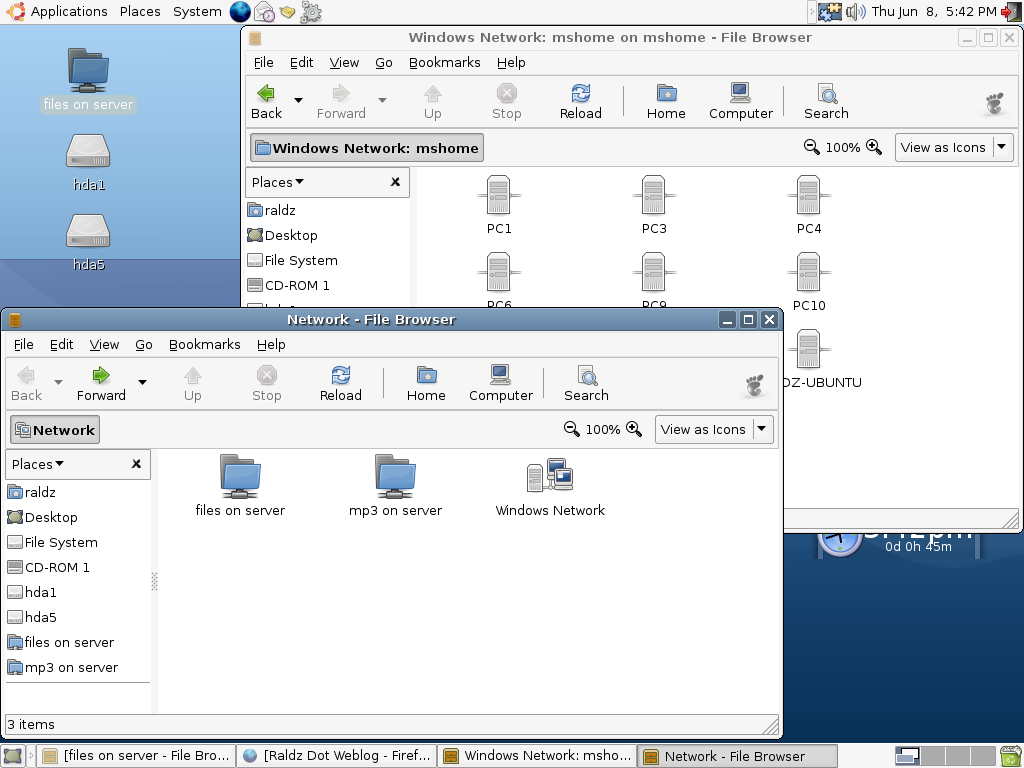


My Linux Desktop browsing the Windows Network


Printing

As of this writing, Linux supports already a vast array of printers, even though the Printer Vendor doesn't provide a Linux driver, chances are, it is already inside the Linux driver database, it is as easy as connecting your printer to your computer and just follow a few clicks and you're ready to use it. If you are still anxious if your printer is supported or not, you may want to visit LinuxPrinting.org to check if your printer model is already in the database. As for the case of printing to a Windows shared printer, all you have to do is use the SAMBA share settings for printers. It is included in the choices of type of networked printers when doing an add printer setup.
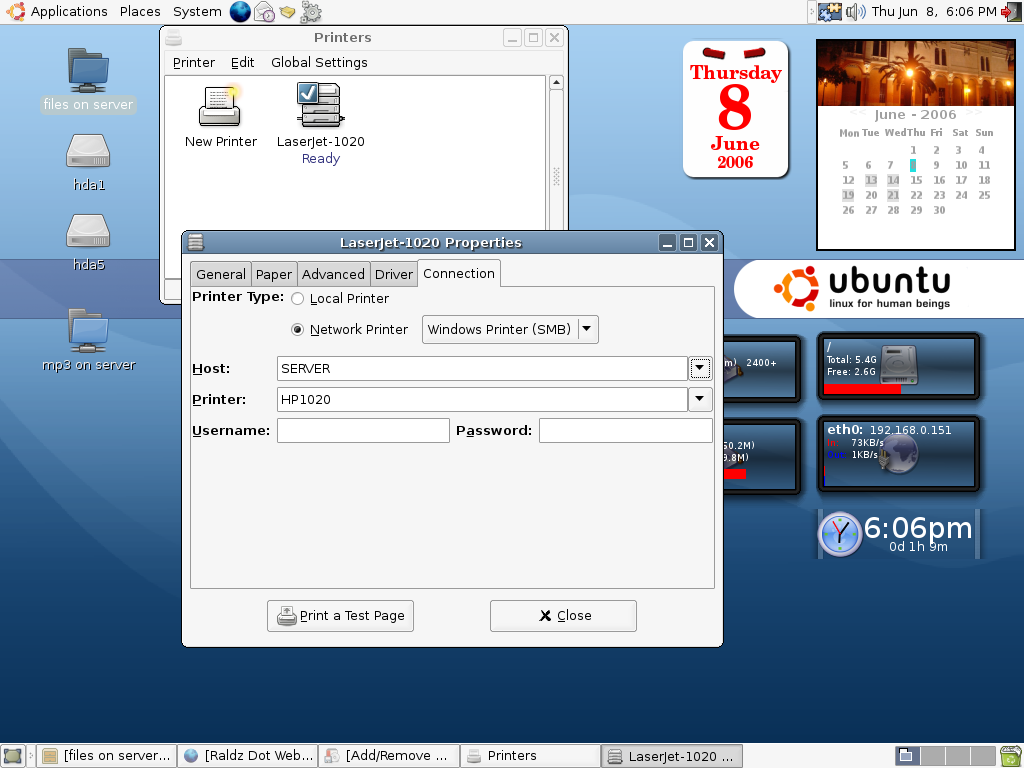


My Linux desktop prints over a Windows Shared HP-1020 printer


Package Managers

Maybe you will ask, where could I get all the extra applications that I need? Most major Linux distributions have their Package Managers pre-installed. This so called package managers can have up to 18,000 applications in their list, all you need is an internet connection or the installation CDs in order to install the applications that you need. It is as simple as searching the package manager either by name or description to find the application that you need. Let us say you searched for “image editor” and your search result may have applications like “Gimp”, “Xara”, “Krita”, and other apps that have image editing capabilities. Just cue your search result for installation and confirm the installation, then you're all set. One of the most popular package manager is Synaptic, many distributions like Ubuntu, Kubuntu, MEPIS, and PCLinuxOS uses Synaptic as the package manager. Although there are other managers like Yast for SUSE, they all play basically the same purpose.


Basic Add-Remove Program for Ubuntu 6.06
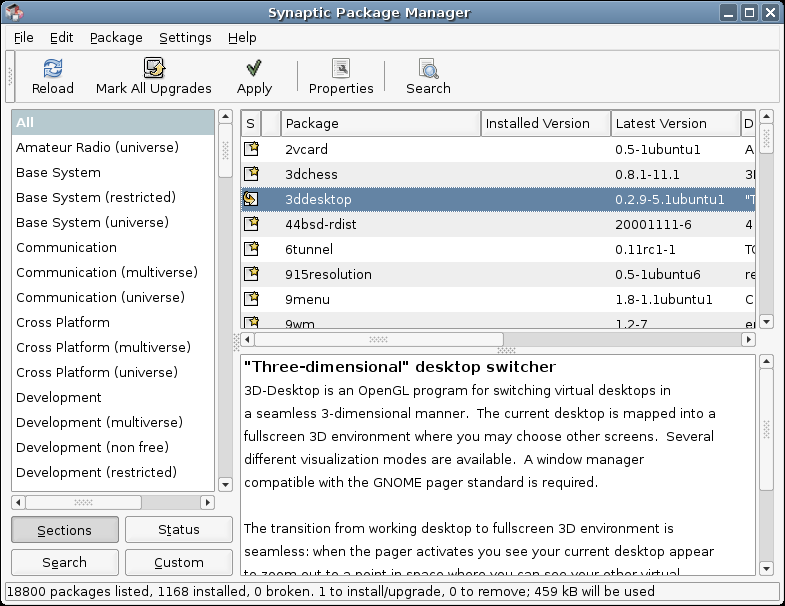

Synaptic Package Manager with over 18,800 available packages


Repositories

After installing your Linux and then you wish to add other applications, you may notice that there are only a few choices of applications to add, let us say 10,000 packages only. These packages are in the “main” repository, or the main source from the ftp or http servers that are supported by your distribution, however, you may add other repositories in order to increase your choices of applications, these repositories are what we call as supported by the “community.” Distributions like Ubuntu and MEPIS have a choice of repositories already included under the “settings” of Synaptic, all you have to do is just mark the repositories that you wish to add in order to increase your package lists. And believe me, think of a task that you wish to accomplish, and chances are, there is a corresponding package in the repositories that will suit that task. And it's free. Yes, as in free beer!


Where Do I Get Further Help?

Most new Linux users are afraid because of the notion that they don't know where to get help if ever there is a problem. That shouldn't be a problem at all, just go to the forums of your respective Linux Distribution to post your questions and you'll be surprised to have answers within minutes. You may find links to official forums from the websites of the Linux distribution of your choice. Still not satisfied? You want instant answers? Then the official IRC channel of your distro is the place to ask questions. These channels are located at the “irc.freenode.net” servers and all you have to do is join the channel of your Linux distribution. Example: #mepis, #ubuntu, and #suse. You'll be surpirsed how friendly the people are at those channels. You will get instant answers for your problem. Now, all of these, you will get.. FREE of charge! Yes, as in free beer! Cheers!


More Screenshots:
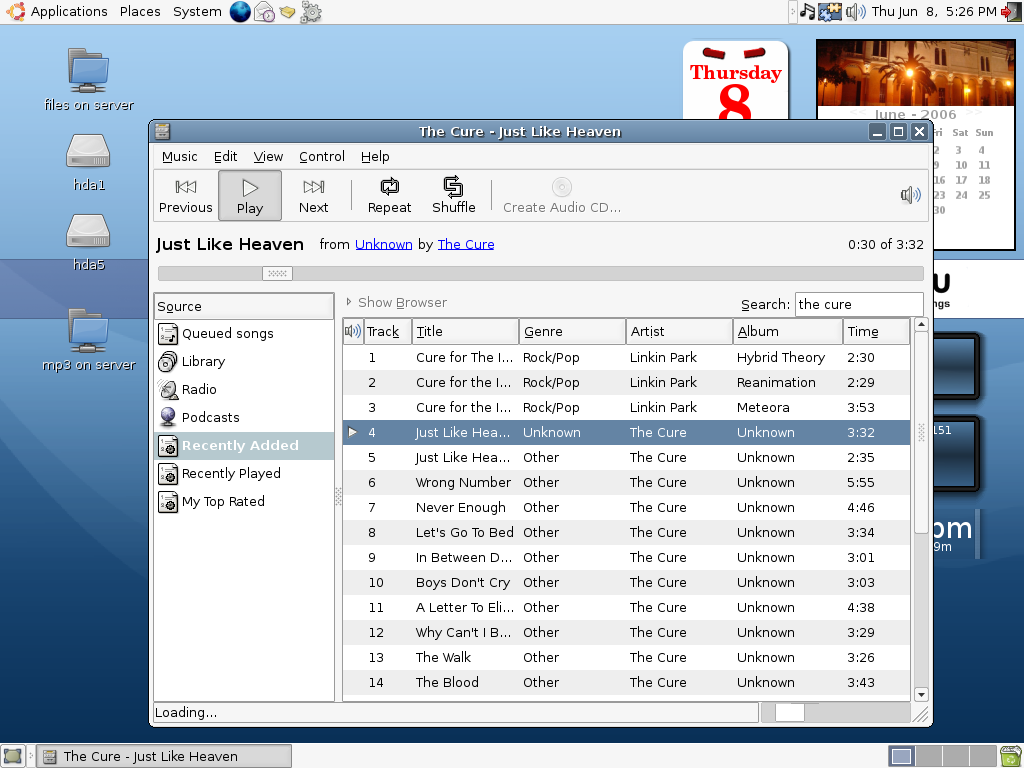

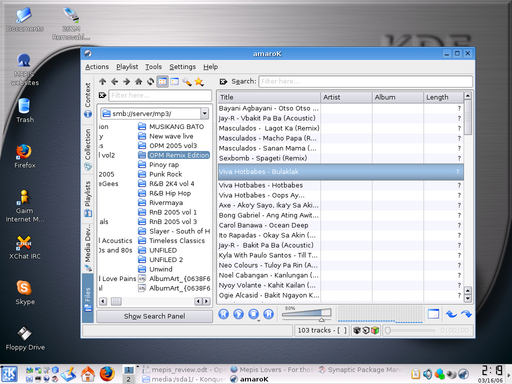
My MP3 Files Being played from a Windows Shared Folder Accros the netowrk
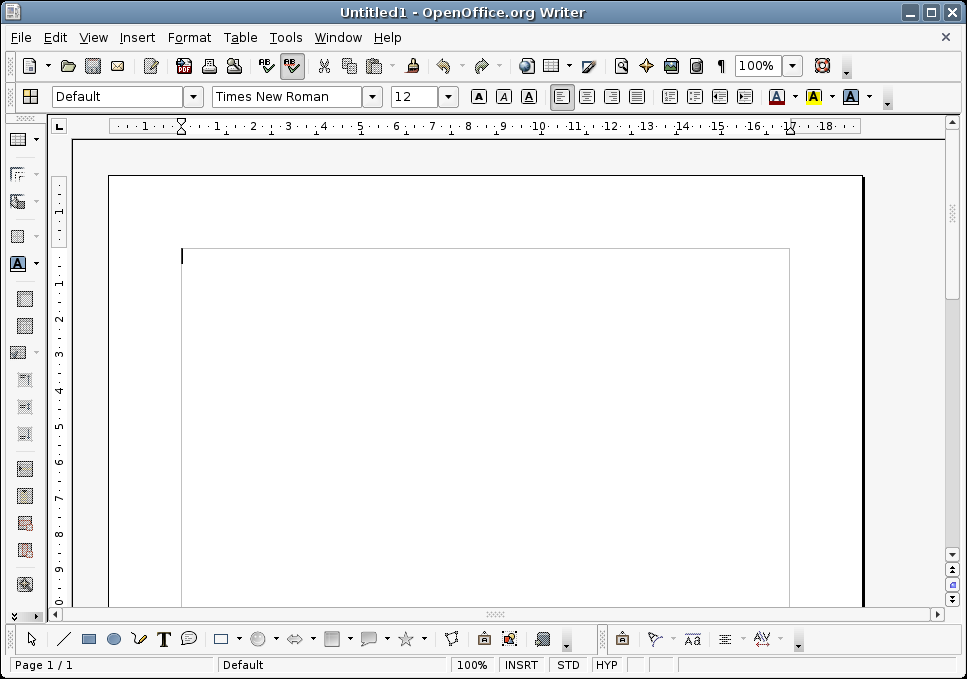

OpenOffice.org Writer, Word Processor


Tuesday, April 18, 2006

EasyLinux Fedora Frog: Fedora Core 5 for the Desktop

At last, EasyLinux has a tool that will make Fedora Core 5 up and running for the desktop. Raivis Dejus has created this tool called Fedora Frog. Fedora Frog is a GUI tool that will install all the needed applications, plugins, and codecs to make your Fedora Core 5 a power desktop computer.

Fedora Frog can do the following:

  • Install extra repositories [RPMForge]
Note: Not all repositories are mutually compatible.
  • Install GUI frontend for yum [yumex]
  • Install commonly needed multimedia codecs
  • Install DVD playback capability
  • Install Java JRE and its plugin for Firefox
Note: You will have to accept Sun's licence
  • Install Macromedia Flash plugin for Firefox
Note: You need to restart Firefox after installation
  • Install extra fonts (including msttcorefonts)
  • Install graphics drivers for nVidia and ATI cards
Note: You should restart your computer after the installation
  • Install Gnome Configuration Editor
  • Install numlockx to turn on NumLock on startup
  • Set up Gnome to open System Monitor every time you push Alt-Ctrl-Del
  • Disable CD blocking in CD-ROM
  • Set up Nautilus to open new folders in the same window
  • Install rar archiver
  • Install Adobe PDF reader
Note: This is not necessery to read PDF documents, you can read them using Evince too.
  • Install Gwenview and digiKam imageviewers
  • Install XMMS (analog of Winamp)
  • Install amaroK media player
  • Install stream directory browser Streamtuner
  • Install CD ripper Grip
  • Install Xine, VLC, Mplayer multimedia players
  • Install RealPlayer 10
  • Install Skype
  • Install Thunderbird e-mail client
  • Install Liferea RSS reader
  • Install Opera web browser
  • Install CD/DVD burning utility K3b
  • Install FTP utility gFTP
  • Install File share utility DC++
  • Install P2P BitTorrent client Azureus
  • Install P2P eMule Client aMule
  • Install P2P Gnutella Client LimeWire
  • Install KDE Edutainment programms
  • Install Photo-realistic nightsky renderer Stellarium
  • Install Some additional games
  • Install Alacarte Gnome menu editor
  • Install Shortcut to browse files as root
  • Install Some desktop backgrounds, icons, themes and screensavers
Note: Try changing your desktop background and look in Theme Details of System -> Preferences -> Theme
  • Install fortune and make Gnome Fish-applet to use it


Note: It is recomended to run update before you run Fedora Frog


To install Fedora Frog run these commands in terminal [Applications -> Ststem Tools -> Terminal

============================================

wget -c http://easylinux.info/uploads/frog.tar.gz

tar zxvf frog.tar.gz -C ~

============================================

To Run Fedora Frog:

============================================

xterm -e ~/.frog/frog.run

============================================


If you are using Fedora Core 4 use these commands to obtain Fedora Frog

============================================

wget -c http://easylinux.info/uploads/frog-fc4.tar.gz
tar zxvf frog-fc4.tar.gz -C ~

============================================

To Run Fedora Frog:

============================================

xterm -e ~/.frog/frog.run


============================================

Some Known Issues:

If you have problems with zenity try as root (su -)

============================================

yum install zenity

============================================

tar: C: Not found in archive

Try

============================================

tar zxvf frog.tar.gz

xterm -e .frog/frog.run

============================================

Sunday, March 19, 2006

SimplyMEPIS: Linux Ready for the Desktop

By: Gerald Cortez

I made this article in order to encourage those who haven't tried any Linux Distribution yet to get out of their comfort zone and experience the best, easy, and secure life with Linux.

The latest release of SimplyMEPIS is 3.4-3 released last February 9, 2006. MEPIS ranks number five at Distrowatch.com and is one of the most overlooked Linux distribution. Why overlooked? Well, from my arsenal of different Linux flavors, this distribution is yet the easiest that I found. From installation to its actual use, I never saw such distribution with so much versatility and it didn't let my fingers touch the command line. Well.. almost, because I did execute one command to update the packages using apt-get. But overall, this distro didn't make me sweat.

It was one lazy Saturday evening and I have nothing to do, so I tried visiting my favorite Linux websites, and MEPIS caught my eye at Distrowatch's ranks. It made me thought for a while, and since I have computers to spare and some extra time, I guess I should give MEPIS a little spin, and besides the next day is Sunday and I have a lot of time to play around with my new Linux flavor.

After a few oohhhs and ahhhhs while playing around with MEPIS, I just couldn't help myself but write an article about it's latest release.. and here is what I found:

The LiveCD

The CD-ISO which can be downloaded here, is consisted of a Live CD, an Install CD, and a Rescue CD all in one Disc. The Live CD functionality is great for demonstration purposes or to test for hardware compatibility before a user may install the system to their hard disk. If, after testing the Live CD and you would like to install MEPIS in your hard disk, you will find an INSTALL icon on the desktop. The MEPIS CD may also function as a Rescue CD, if, after a system crashes or your hard disk crashes (Windows or Linux), and you wish to rescue your files or the whole system itself, you may just boot to the CD to access your system or files. Not all Linux distro has this functionality, and it is great to have this all in one CD.

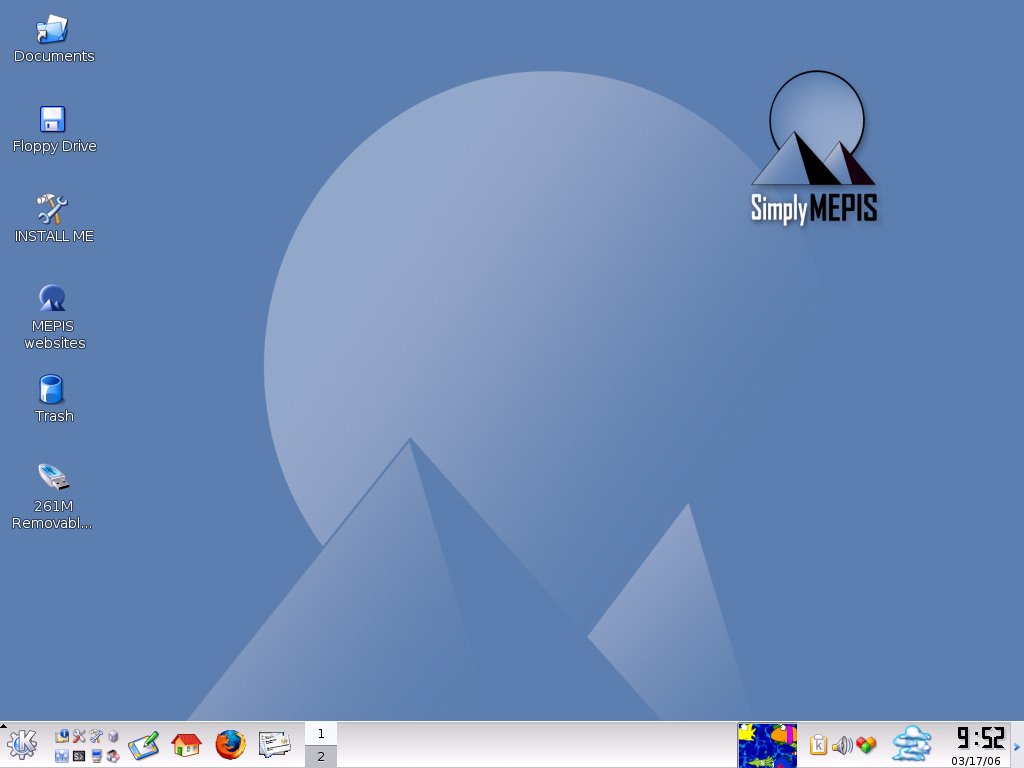
The default LiveCD interface


Installation

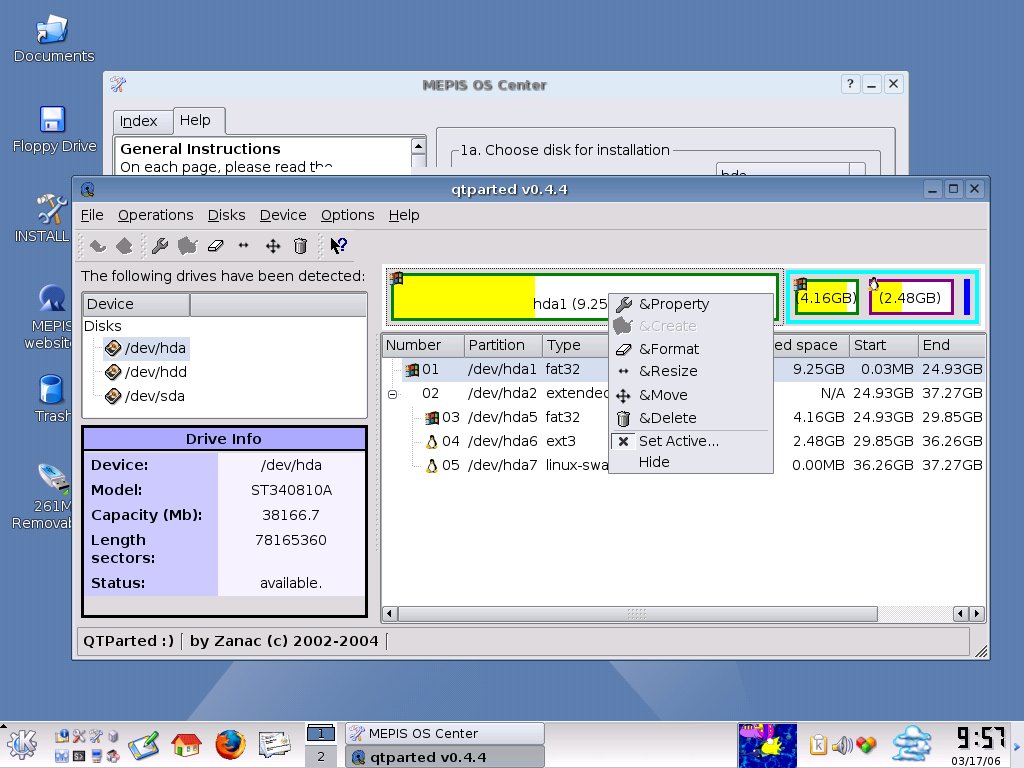
The installation took just 18 minutes on my machine running AMD Duron 850MHz with 128MB of RAM. When I reached the partition section, MEPIS launched Qparted, a program similar to Partition Magic in Windows in order to allocate partitions for the Linux installation. It is important to remember to allocate a swap partition for your MEPIS and have it formatted, because the installation procedure won't warn you if there is no swap partition allocated. After installation, I just removed the aquarium which is in the task panel by default. The default icon size in Konqueror (the file explorer) is a little bit too small, so I have to resize this to my preference. Overall customization just took me 5 minutes and the desktop is all set to go.

Using Qparted to partition the hard disk for MEPIS is easy.

The installation took around 18 minutes

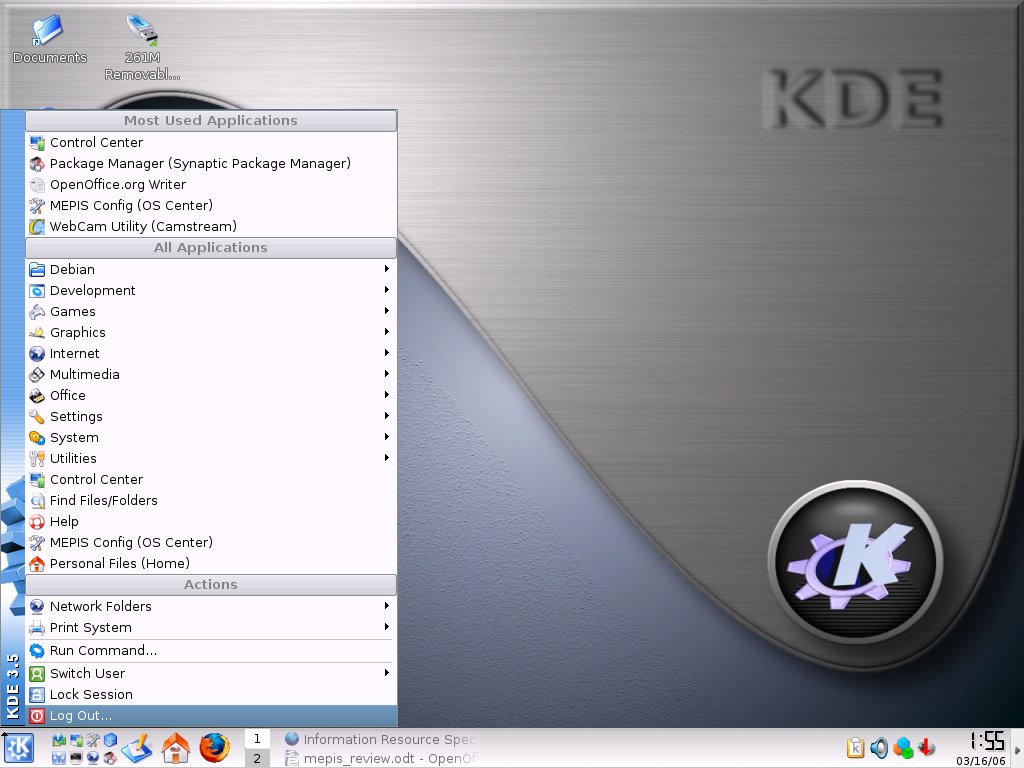
The new clean look

Hardware Support

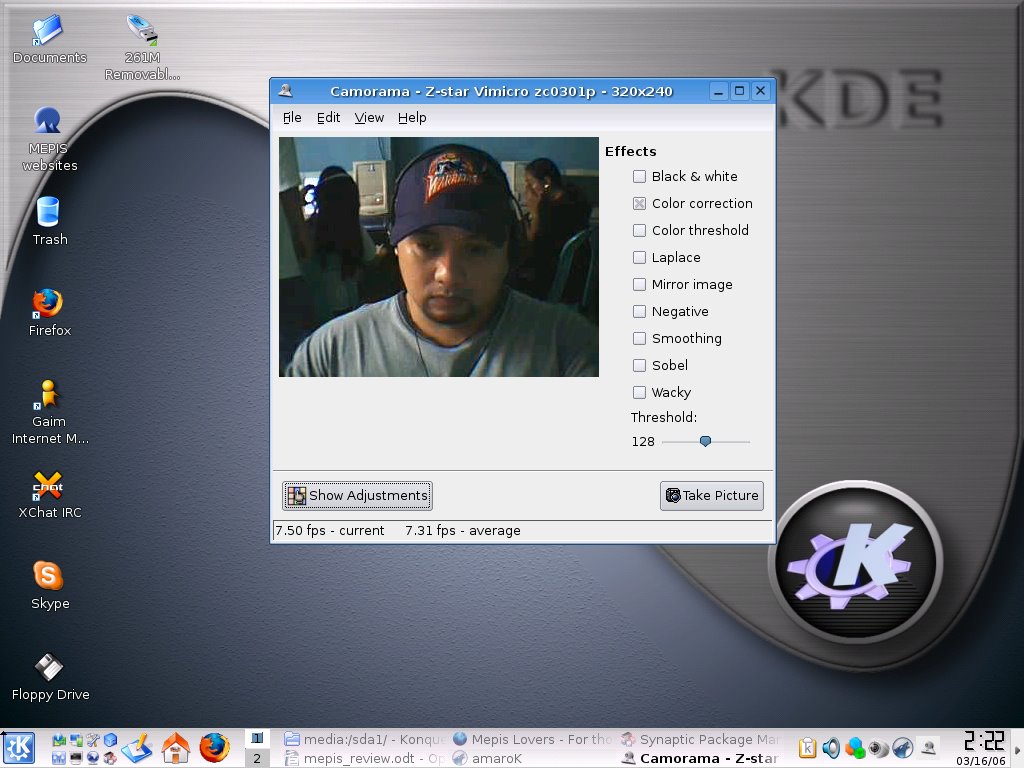
All my hardware where detected properly including the option to install nVidia and ATI graphics drivers. External drives and DVD drives were detected and mounted properly on the default installation. I tried installing MEPIS on different machines and the only trouble that I encounter is that the display won't work when you run the MEPIS LiveCD on a 14 inch monitor. My printer which is HP Laserjet 1020 was finally detected. Earlier Linux distribution like Ubuntu 5.10 and SUSE 10.0 could not install my printer drivers properly. And lastly, I could now use my webcam with MEPIS 3.4-3. My webcam doesn't work on distributions that I've tried previously.

Finally, a distro that recognizes my A4Tech Webcam


Networking

Connectivity is a must these days, even homes with multiple computers have their own local network. This is also important for me, and to find this very easy in MEPIS just made me shook my head. Everything I need including file sharing and Internet connection was configured properly by MEPIS. Wireless LAN detection was also properly configured, however, this may vary depending on your Wireless LAN card. So far, networking is a breeze in MEPIS.

Multimedia

MEPIS is known for having legacy multimedia codecs installed by default, which makes this features MEPIS' strong points when it comes to desktop computing. After installation, I opened my multimedia files from my Windows machine across the network, and MEPIS' default players just played my multimedia files without a glitch. This feature is what I was looking for from earlier Linux distributions, and MEPIS just answered my request.

Synaptic Package Manager
My mp3s playing from a Windows shared folder.


Productivity Apps

Most of the commonly needed applications for productivity is already installed by default. Things you will need for documents, finances, Internet, communications, email, instant messengers, notes, photo editing, fax, scanning, and almost anything you think of as a common user is already there at default installation. This choices of applications makes MEPIS ready out of the box for home and small office usage.

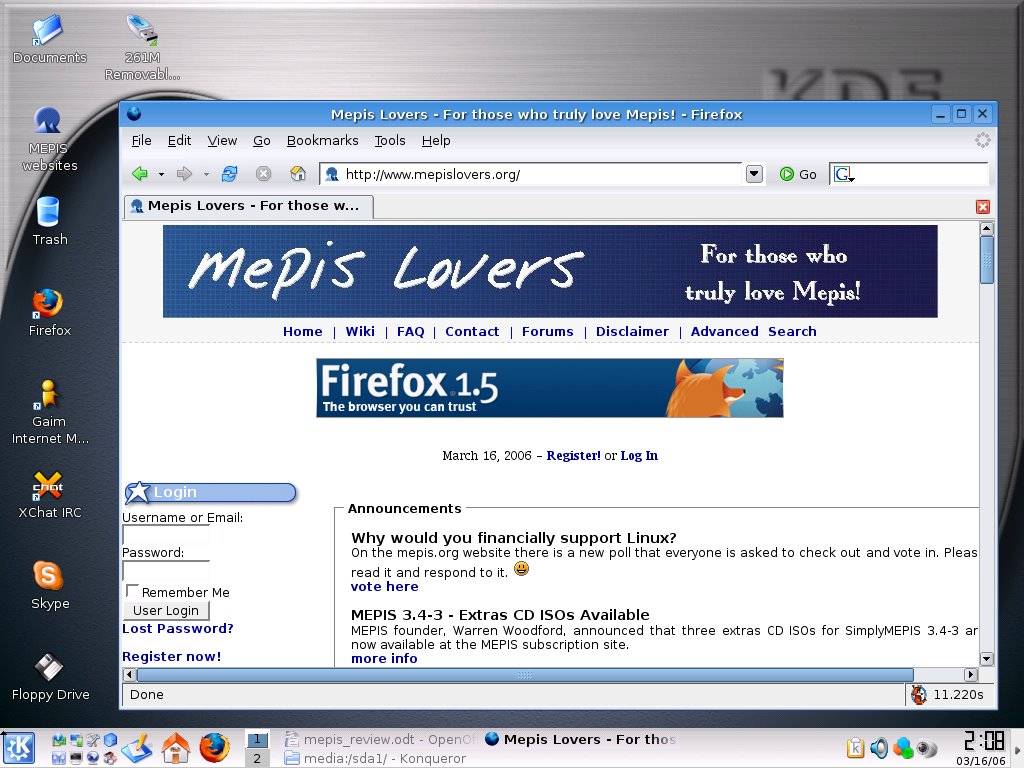
Running Firefox

Additional Packages

One thing that makes MEPIS as one of the most flexible distribution is the fact that it's Debian. After installation, I decided to add a few more extra packages. I opened synaptic package manager and found that there is 1000+ available packages on the MEPIS default repository. As a power user, I want to add more repositories and found two unselected Debian repositories. By selecting this two and updating the cache of synaptic, I was able to access 17,000+ packages ready for download and installation. I installed my usual stuffs for webpage/site editing, Apache, MySQL, PHP, and other power user stuffs. This showed how flexible MEPIS is starting as just a plain Desktop computer, to an Enterprise like environment.


Synaptic Package Manager
Synaptic downloading additional apps.

Maintenance

Since the repositories point to “etch” or the Debian package collection for testing, you could always upgrade your default packages to your liking. However, since the packages are in testing or beta mode, you can expect instability and may crash your system. So, to make sure that you have the latest stable package, you could always change “etch” to “sarge” or the stable Debian repository.

Going Further

As most common people new to Linux would want to do, you could play with your MEPIS box, upgrade a few packages like KDE 3.5, and discover how this would work for you. If there is any trouble that you might encounter, you could always consult forums like MEPISLOVERS.org and ask questions. Linux is supported by the community, and you could get instant support if you would just visit different forums dedicated to Linux.

Overall, I can say that MEPIS is a distribution of choice for the new Linux Desktop users. However, Linux distros continously improves and there are new releases waiting this April of 2006.